
Help topics
Your first video
Everything starts with one or two sentences about the video you want. Create then asks for format, style, length, voice and language.
Describe the idea
On New video, write what the video is about, who it is for and what it has to cover. The label under the text tells you when the description is long enough. Pick the project it belongs to and whether production should run on its own (Auto) or pause for your review (Manual), then press Continue.
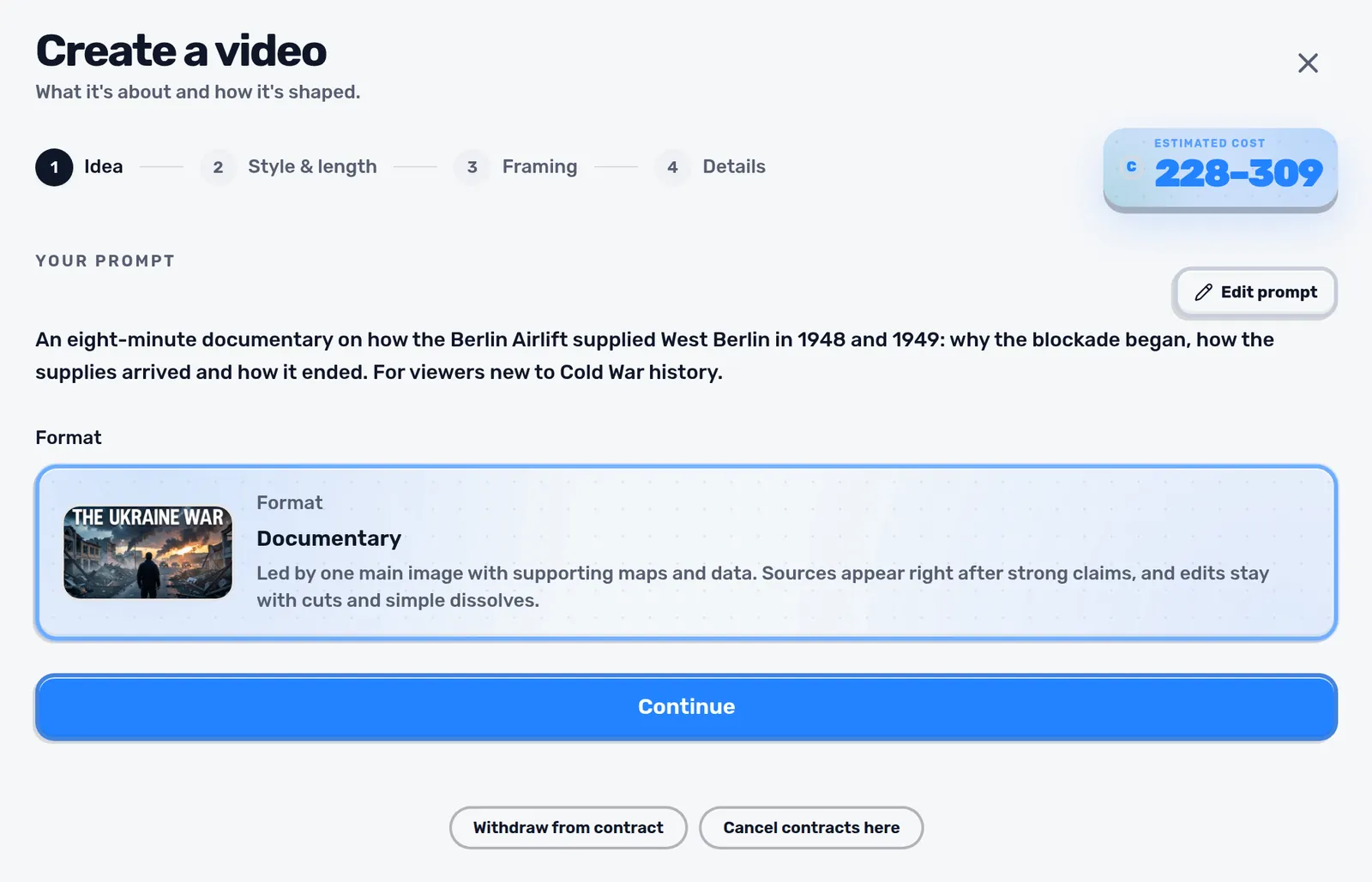
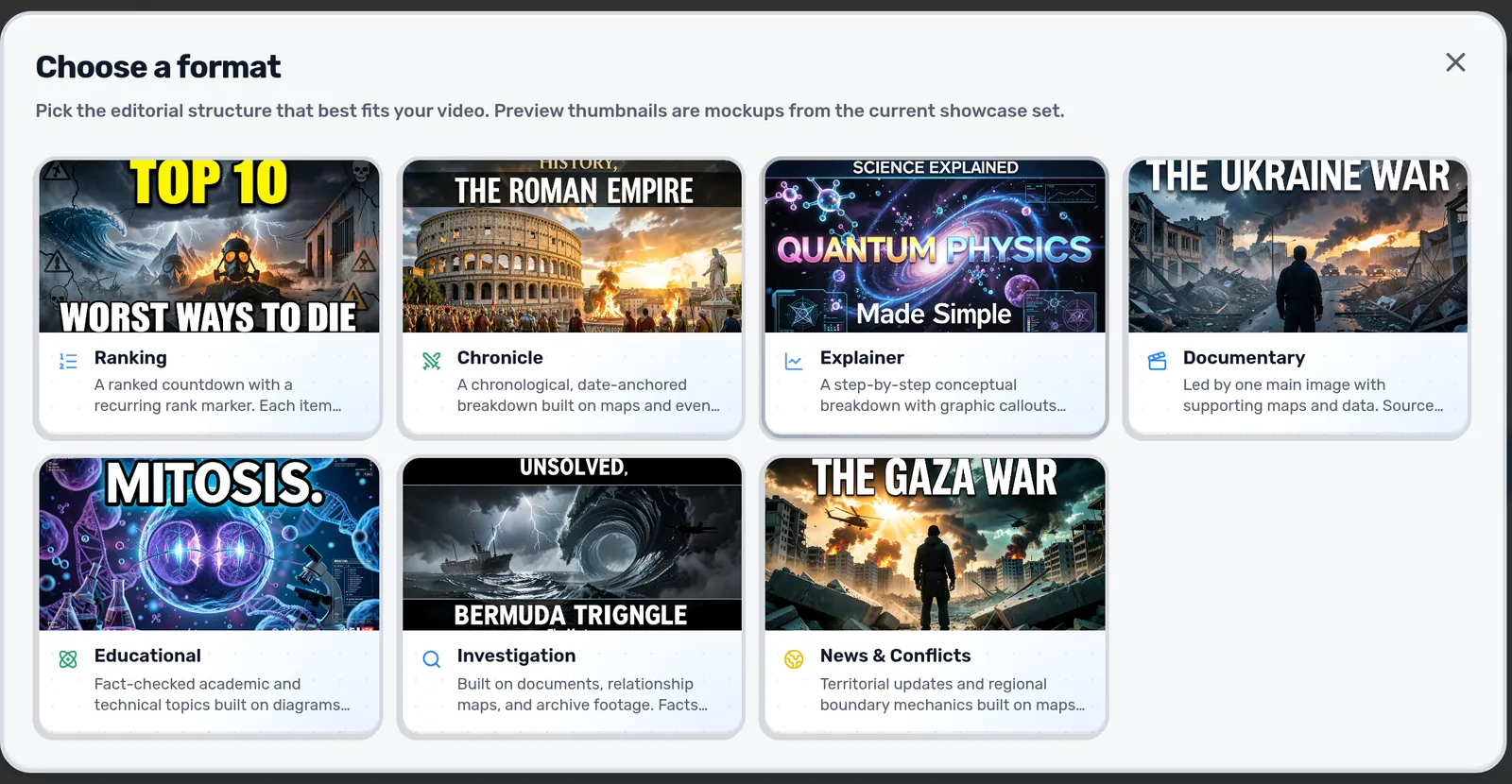
Choose a format
The format decides how the story is structured. A documentary follows one main image with maps and data where they help, a chronicle moves through dates, an explainer builds a concept step by step. The preview images are mockups of each format, not your video.
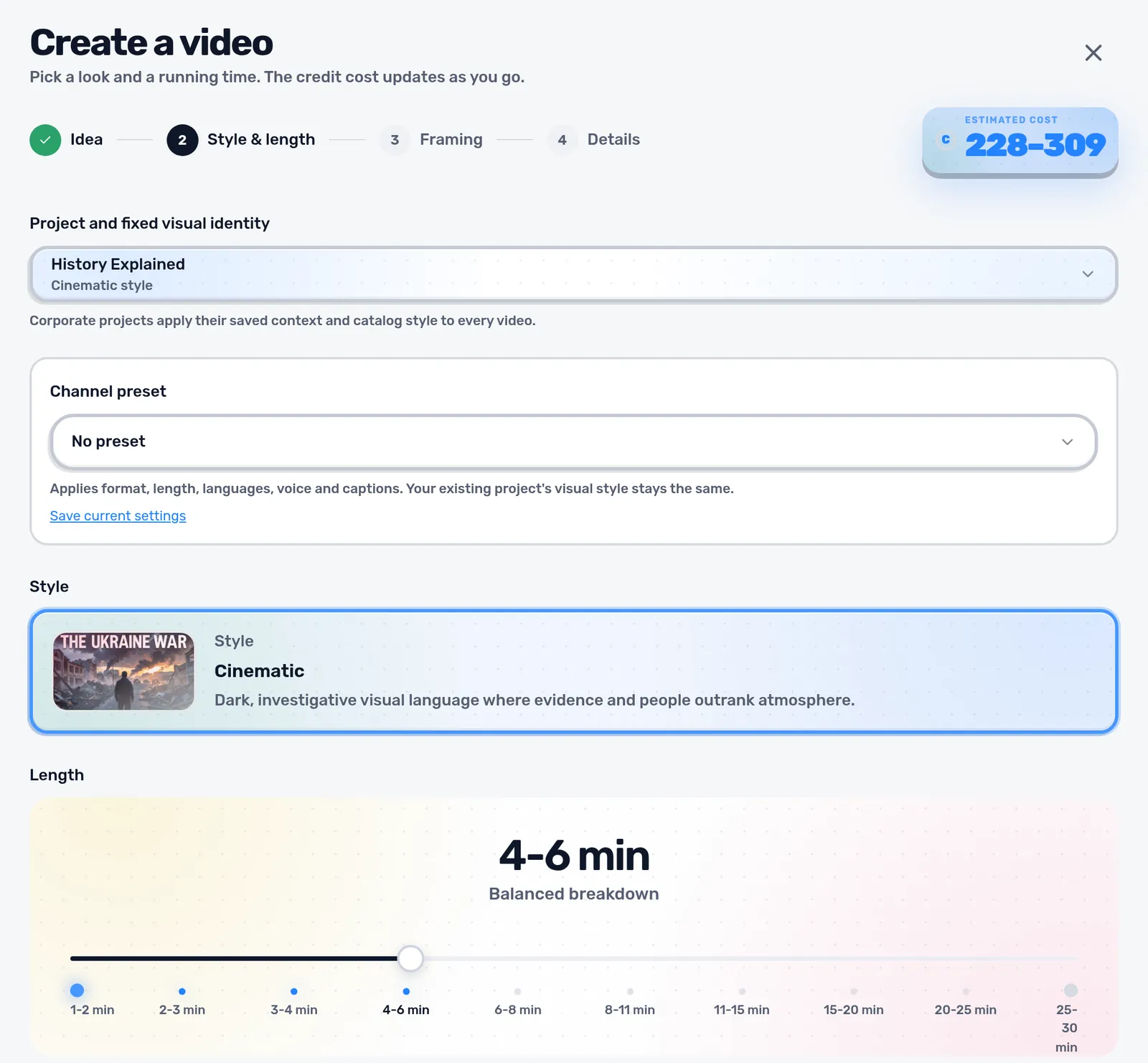
Style, length, voice and captions
The next steps set the visual style, the running time, how the narration is made and whether captions are burned in. The estimated cost in the top corner updates as you change things, so you always see what a choice costs before you start.
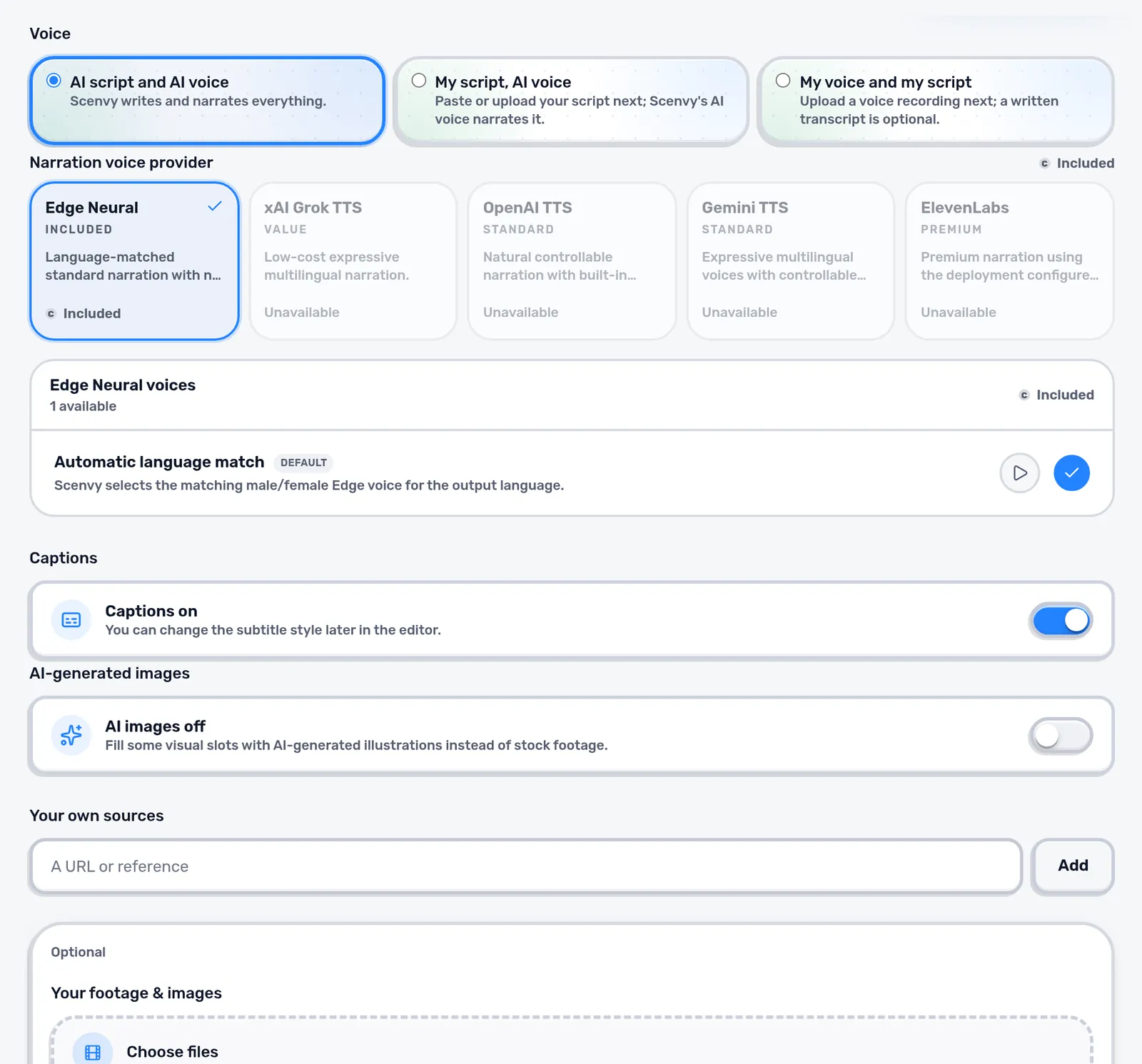
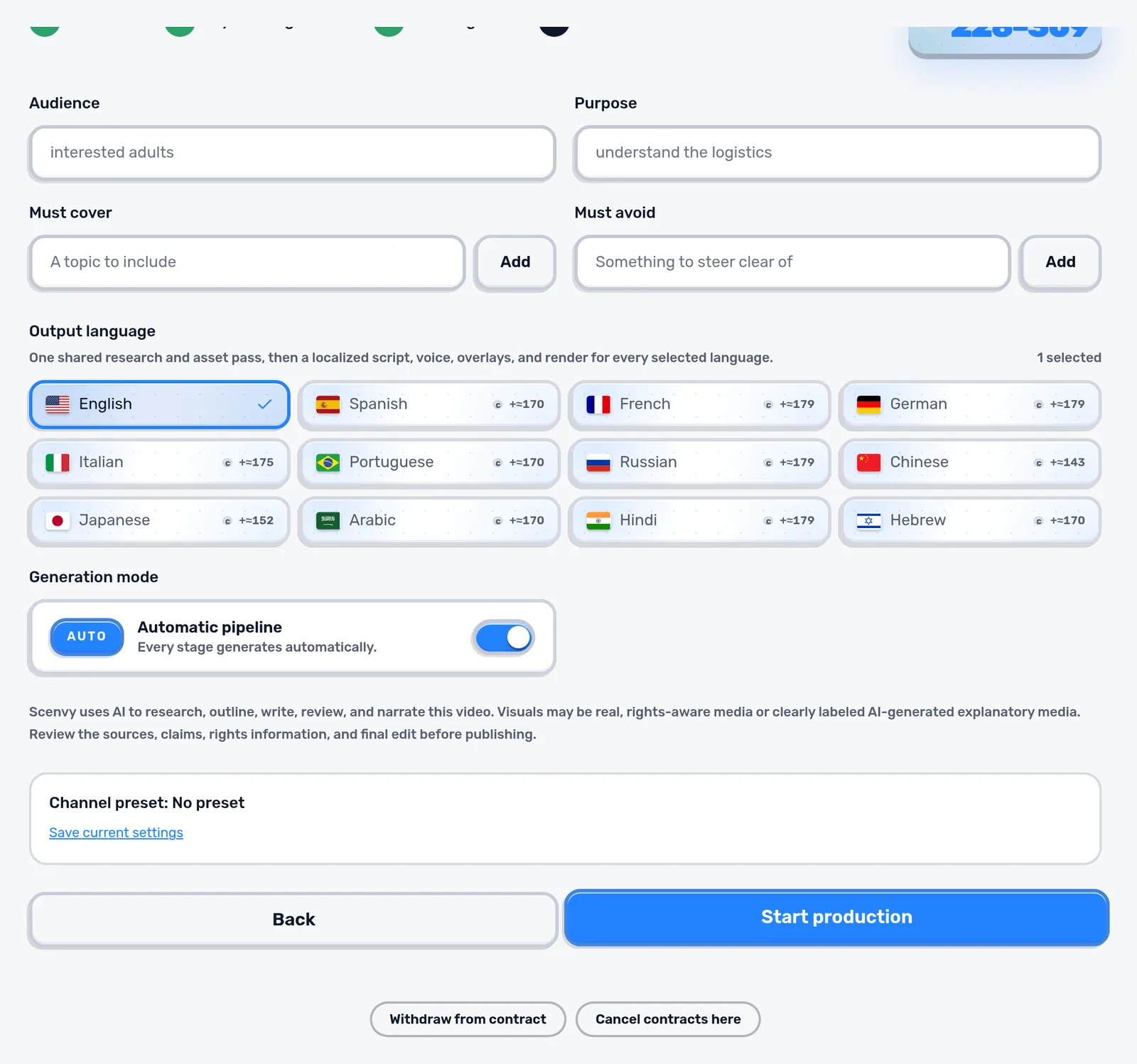
Details and start
The last step fills in the audience and purpose Scenvy picked up from your prompt and lets you add points that must be covered or avoided. Select one or more output languages, check the mode and press Start production.
- Keep the first video short. One or two minutes renders fastest and costs least.
- Choose Manual if you want to see each stage; you can switch to Auto at any point.
- Add your own source links if the facts have to come from specific documents.
Tip: Anything you know for sure belongs in the prompt or in Must cover. Scenvy asks clarifying questions later, but it cannot guess a detail you did not mention.
After the start, the video opens on its production page. How production works explains each stage.
Next: How production works