
Help topics
The editor
Every finished video can be changed in the editor: replace a picture, fix a caption, shorten a pause or lower the music. Export renders the changes into a new MP4.
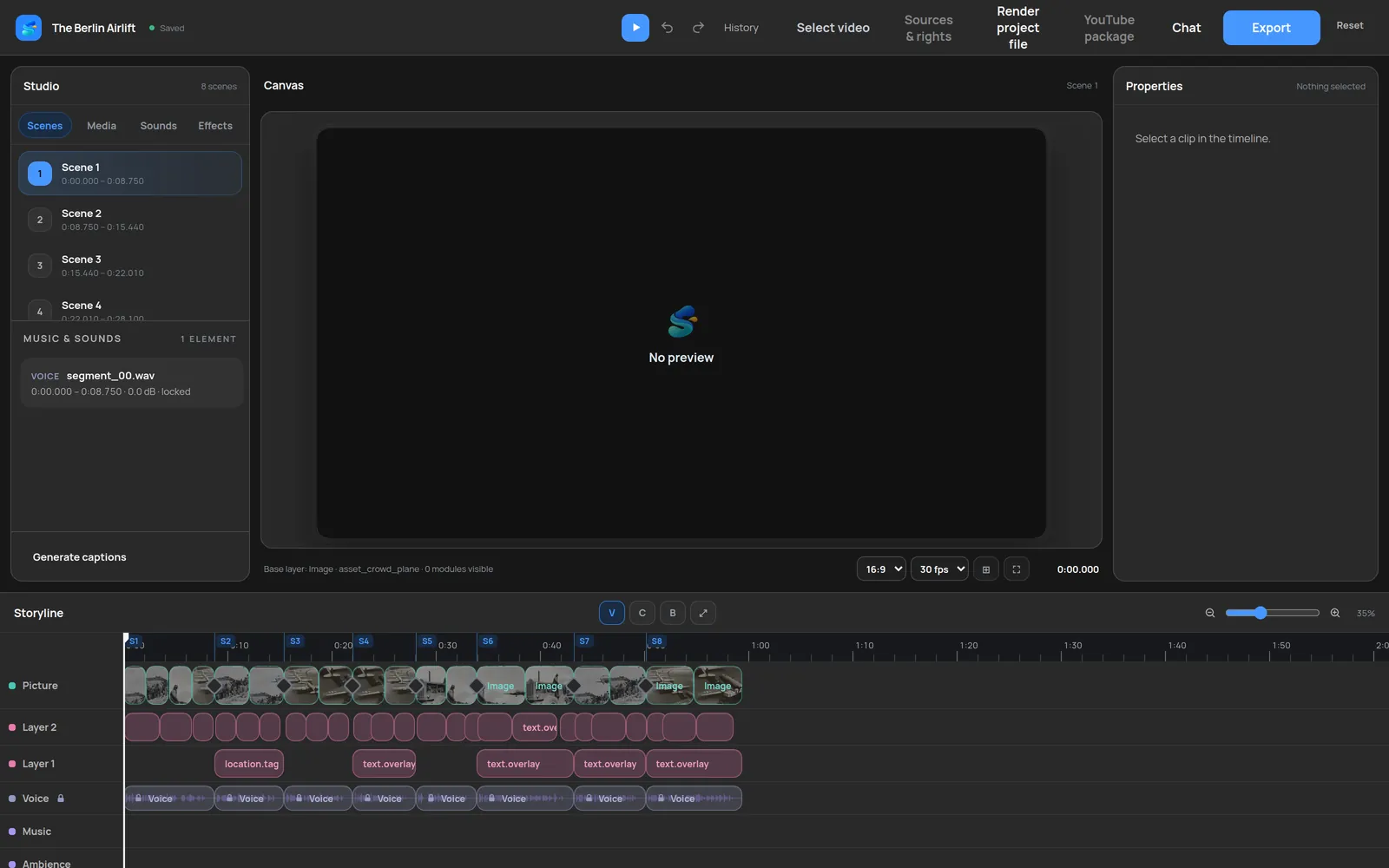
Open a video and choose Open in editor from its menu. The timeline has one row for the picture, rows for graphics and captions, and rows for voice, music and ambience. Select a clip to change it on the right. Narration clips are locked, because every scene is timed to them.
Toolbar
| Button | What it does |
|---|---|
| Sources & rights | Sources and media licenses of the current cut |
| Project file | An editable project for Premiere, Resolve and Final Cut |
| YouTube package | Video, description, chapters, thumbnail and captions |
| Chat | Ask for a change in words |
| Export | Render the current timeline to MP4 |
| Reset | Discard your edits and restore the original cut |
| Generate captions | Create a caption row from the narration |
Keyboard shortcuts
| Key | Action |
|---|---|
| Space | Play and pause |
| J K L | Play backwards, stop, play forwards (press again for faster) |
| ↑ ↓ | Previous or next cut |
| V | Select tool |
| C | Razor tool, click a clip to split it |
| B | Trim tool, drag a clip edge |
| S | Split the selected clip at the playhead |
| I O | Set in and out point; with Shift, clear it |
| Shift X | Remove everything between in and out |
| M | Add a marker |
| Delete or Shift Delete | Delete a clip, or delete it and close the gap |
| Ctrl D | Duplicate a clip |
| Ctrl Z / Ctrl Y | Undo and redo |
| Shift Z | Fit the timeline to the window |
| F | Full-screen preview |
On a Mac, use Cmd instead of Ctrl.
Common changes
To replace a picture, select it on the picture row and pick another asset in the properties panel; choose material you may publish. To fix a caption or a graphic, select it and edit the text. A wrong fact that is also spoken has to be fixed in the narration too, otherwise text and voice disagree. For a slow passage, set an in and out point and press Shift X.
Tip: An earlier download never changes. After editing, export again and watch the new file before you publish it.
Next: Export and sharing